Getting started

From signup to your first text — here's the whole path, start to finish.

1
Sign up

Pick a plan, fill in a short intake form, and pay through Stripe. Takes a couple minutes.

2
Welcome text + email, right away

You'll get a text and an email immediately with your dedicated Max'd Out number — the one you'll text everything to from now on — and a link to your portal.

3
One-time setup: upload your 3 QuickBooks files

In the portal's Upload tab, export your client list, vendor list, and Chart of Accounts from QuickBooks and drop them in — so Max'd Out already knows your names and categories before you send a single text. Starting fresh instead of migrating? Skip this and go straight to texting.
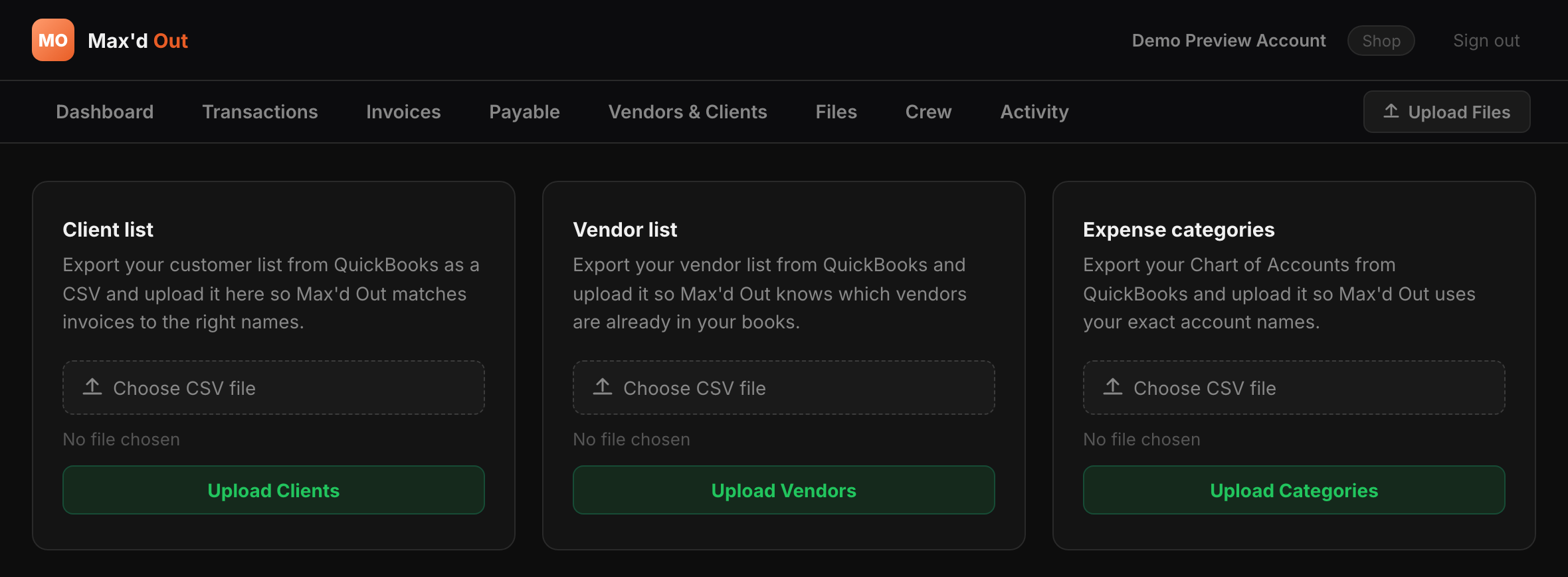
Max'd Out portal Upload tab showing Client list, Vendor list, and
                      Expense categories upload cards
4
Confirmation text

Once your client list, vendor list, and categories are all loaded: "You're all set. I've got your clients, vendors, and expense categories loaded. Start texting me your expenses and jobs anytime."

5
Day-to-day: just text

This is the whole job from here. No app, no login — see it in action on the homepage.

6
If you ever want to look

The portal's still there. Your Dashboard has a QuickBooks Import Files card showing exactly what's ready to export any time you want it. Past periods live in your Export Archive, each re-downloadable as a ZIP. And your weekly outlook report lands as a plain link, texted to you — no portal login needed to open it.

That's the whole portal. We kept it small on purpose.

Some tools need an onboarding coach just to find your way around the dashboard. This one doesn't, because there's genuinely nothing more to learn — you already know how to send a text.

Frequently asked questions

Plain answers, no jargon — same as Max'd Out itself.

Do I need to download an app or log in?

No — texting is the only interface you need day to day. A web portal exists if you ever want to review your books or pull an export, but it's optional, not required.

Does it work with voice memos?

Yes. Attach a voice memo to a text and Max'd Out transcribes and processes it the same way it handles typed messages.

What if Max'd Out doesn't recognize a name I mention?

For a client, it stops and asks before doing anything else — "I don't recognize [name] — is this a new client?" — and nothing posts until you confirm. A new vendor works the other way around: the expense still logs immediately, then Max'd Out asks for the vendor's details so the roster stays complete.

Does this replace QuickBooks?

If you're a QuickBooks subscriber, no — Max'd Out is the capture layer in front of it, and QuickBooks still handles reconciliation and client-facing invoicing. If you don't use QuickBooks, Max'd Out runs in its own no-QuickBooks mode and your dashboard becomes the system of record — no separate accounting subscription required.

What if I made a mistake in a text?

Just say so in your next message. Corrections and follow-ups get read in context against what you sent before, not treated as unrelated fragments.

How much does it cost?

One flat monthly price, no per-transaction fees. See the full breakdown on Pricing.